Materials
A Material is the stock that gets formed into product — identified by a Material Code, with optional detail such as description, color, gauge, width, weight per foot, thickness, and type. Eclipse never requires you to pre-load materials: if an order references an unknown Material Code, Eclipse creates the record with empty detail and a placeholder description, and a user can fill it in later. Everything below is about supplying that detail automatically instead.
There are five ways material data reaches Eclipse. They are not mutually exclusive — a common setup is order detail arriving via Order Import while material detail is filled in by an on-demand database lookup.
| # | Path | Classic | Pro | Trigger |
|---|---|---|---|---|
| 1 | Table Import (ASCII / SQL) | ✅ | ✅ | One-time / transactional |
| 2 | Database sync — on-demand lookup | — | ✅ | Automatic, when a code is missing |
| 3 | Explicit REST API | — | ✅ | Caller pushes |
| 4 | Inline with Order Import | — | ✅ | With each order |
| 5 | Direct — custom integration | — | ✅ | Customer-specific |
1. Table Import (ASCII / SQL)
The classic, one-time material-detail import. A material record (Material Code plus color/gauge/width/etc.) is read from the shared ASCII/SQL table structure. Works in both Eclipse Classic and Eclipse Pro and uses exactly the same data structures as every other table import — only the interface (flat file vs. SQL table) differs.
This path is fully specified on the Table Import page. See also the SQL/ASCII data-transfer specifications linked from that page for the exact field list.
Use this when the external system can push a material list (or you maintain one) and you want the same flat-file / SQL approach Classic has always used.
2. Database sync — on-demand lookup (Pro)
Eclipse Pro can fill in missing material detail by querying an external database on demand. This is not a poll and not a full sync: when an order or coil references a Material Code that does not yet exist in Eclipse, Pro detects the missing code and queries your database for just that material's detail.
This path has not been documented elsewhere, so it is specified in full here.
How it triggers
- Automatic: any newly-detected missing Material Code triggers a lookup for that code.
- Manual: an operator (or API call) can request an immediate run, which retries the entire current set of missing codes — useful if an earlier automatic attempt failed (source system down, etc.).
If the lookup returns nothing for a code, the material still exists in Eclipse with empty detail; the lookup simply had nothing to add.
External connection
The lookup runs against an External Connection. Eclipse is known to work with Microsoft SQL Server, Oracle, PostgreSQL, MySQL, AS/400 / DB2, and ODBC drivers — the same database support described in Integration. On startup, Eclipse validates the connection and confirms the configured table/view is reachable and has a MATERIAL column; a bad configuration is rejected with a clear error.
The query and recognized columns
Eclipse issues, in batches of up to 50 codes:
SELECT * FROM <your table or view>
WHERE MATERIAL IN ( ...the missing codes... )
ORDER BY MATERIAL
Point <your table or view> at a table or a view. A view is the recommended approach when your source column names differ from the names below or when you need to join/transform — Eclipse only reads, never writes.
| Source column | Maps to | Notes |
|---|---|---|
MATERIAL | Material Code | Required. Max 20 characters; longer values are rejected. |
DESCRIPT | Description | Optional |
COLOR | Color | Optional |
LBSPERFT | Weight per foot | Optional, numeric |
WIDTH | Width (in) | Optional, numeric |
GAUGE | Gauge | Optional, integer |
TYPE | Type | Optional |
SQLPLANT | (plant filter) | Optional. See multi-plant below. |
Only MATERIAL is required. Any of the optional columns that are present are applied; missing ones are simply left empty. Records that fail validation (e.g. an over-long code) are rejected, logged, and recorded against the import event — the rest of the batch still imports.
Multi-plant
Some customers keep a single shared material list but separate orders by plant. If the configured table/view exposes a SQLPLANT column and the External Connection has a plant code set, the lookup is automatically filtered to that plant. If there is no SQLPLANT column, no plant filter is applied — the shared list is used as-is.
Configuration
Material import is configured in the Eclipse Pro UI under Settings → Integration → Material Import.
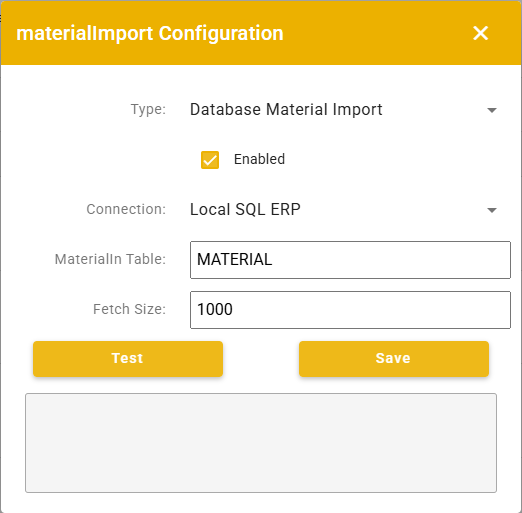
Set:
| Field | Value |
|---|---|
| Implementation / type | Database (DbMaterialImport) |
| Enabled | on |
| External Connection | the connection Eclipse should query |
| Table or View Name | the table or view to read (no special characters) |
| Fetch Size | batch size; capped at 50 |
The External Connection itself is also created and managed from Settings → Integration.
Monitoring and manual runs
Settings → Integration → Material Import also shows recent import events — record counts, imported counts, and any errors or rejected records — for the last several runs, and provides a control to force an immediate run, which re-attempts the full set of currently-missing codes (useful if an automatic attempt failed because the source system was unavailable).
Use this path when your ERP/database is the system of record for material detail and you want Eclipse to pull detail automatically as new materials show up, without pushing a full list.
3. Explicit REST API (Pro)
An integrator (or the Eclipse UI) can push detail for a known material directly:
PUT /api/material/{materialId}
Content-Type: application/json

{
  "MaterialCode": "STEEL-26-WHT",
  "Description":  "26ga White",
  "Color":        "White",
  "Gauge":        26,
  "WidthIn":      41.25,
  "LbsPerFt":     0.91,
  "ThicknessIn":  0.019,
  "Type":         "Steel"
}
MaterialCode is required. The material must already exist (the endpoint returns Not Found otherwise — it updates, it does not create). The update is applied through the Agent, so it propagates to Eclipse the same way every other material change does.
Authentication is the standard API key flow — see Getting Connected to the API.
Use this path for a deliberate, caller-driven update of a specific material — e.g. an ERP that wants to push corrected detail when it changes on their side, rather than waiting for Eclipse to ask.
4. Inline with Order Import (Pro)
When orders are imported via the JSON API (or order-import files), each product line can carry its material detail alongside the order. A Material Code that does not yet exist is created as part of the import; if a database sync is also configured, that missing code is then enriched by the on-demand lookup.
This is documented with the rest of the order payload — see Order Import.
Use this path when the same feed that delivers orders also carries enough material detail, and you would rather not run a separate material integration at all.
5. Direct — custom integration (Pro)
For systems that none of the paths above fit, Eclipse Pro supports purpose-built, customer-specific material integrations — for example pulling detail from an ERP's API, or receiving it via a webhook. These typically follow the same on-demand model as the database sync (Eclipse asks for a material's detail when the code is first seen) but source it from whatever system and protocol the customer needs, mapping the result onto the same material fields.
Direct integrations are bespoke and license-gated. The "Directly" mechanism is, by design, custom development work — see Integration. Contact AMS if your material data lives in a system the standard paths don't reach.
Which path should I use?
- Classic, or you already maintain a material list: Table Import.
- Pro, ERP/database owns material detail, fill in as needed: Database sync. This is the typical Eclipse Pro choice.
- Pro, you want to push specific corrections deliberately: Explicit REST API.
- Pro, the order feed already carries material detail: Inline with Order Import — nothing extra to configure.
- Material data lives somewhere the standard paths don't reach: Direct integration — talk to AMS.
Doing nothing is also valid: orders with unknown materials still run, and detail can be added by hand later. Note that machines with y-axis punching require material width and gauge values.