Query Lists
Query Lists give operators a menu on the XL controller for looking up live production data — the current order, what's queued up next, what's scheduled, what coil is loaded, and more — without leaving the machine. Everything the operator sees is configured in Eclipse Pro and sent down to the controller's display.
This replaces Eclipse Classic's Query Lists screen. Everything is now configured in Eclipse Pro under Settings → Query Lists; a one-time import brings your existing Classic query lists across.
After the import, the Query Lists screen in Eclipse Classic is locked and shows "Query Lists are now managed in Eclipse Pro." This is deliberate — editing the old screen would corrupt the lists Pro sends to the controllers. All changes are made in Pro from that point on.
Query Lists require XL controller firmware UART 3.15 or newer. Machines below that version are not eligible — Pro skips them at deploy time and reports a warning (see Saving vs. deploying).
How it fits together
A query list is one query definition — a named entry in the controller's menu. A machine's menu is simply all of its assigned lists in order. There are four list types:
| Type | What it queries |
|---|---|
| Order | Order-level production data — order number, material, product code, customer name, and similar order fields. |
| Setup | Machine setup data. |
| Label | Label data. |
| Kit | Kit data. |
Each list defines which fields get sent to the controller display when the operator selects it —
for example, an Order list might send ORDER, MATERIAL, PCODE, and CUSTNAME. The set of
fields you can choose from is specific to the list's type.
Order lists have two extra abilities other list types don't:
- Status filters — narrow the list to orders that are Sequenced, Scheduled, Unscheduled, the Current Material, or the Current Coil PCODE.
- Next List — chain a follow-up Order list so that after the operator picks a result row, a drill-down list runs automatically.
The settings page
Settings → Query Lists is where you build and manage your lists. Multiple query lists are supported per machine.
The list editor
Opening a list shows its definition. For each list you set:
- Name — what the operator sees on the controller display, up to 40 characters (a controller display limit; longer text is truncated).
- List type — Order, Setup, Label, or Kit.
- Fields to send — chosen from a catalog specific to the list's type (for example, an Order
list can send
ORDER,MATERIAL,PCODE,CUSTNAME, and other order fields). - Status filters (Order lists only) — Sequenced, Scheduled, Unscheduled, Current Material, or Current Coil PCODE.
- Next List (Order lists only) — a follow-up Order list to drill into after the operator picks a result row.
Permanent vs. on-demand
Each list is marked either Permanent or on-demand:
- Permanent lists live in the controller's menu at all times and are sent on every list reset.
- On-demand lists are resolved by the PC only when the operator drills into them — typically because they're the target of a Next List chain. Only Order lists can be on-demand.
Machine assignment and ordering
Assign each permanent list to one or more machines, and set the order lists appear in the controller's menu. A machine can have several query lists assigned to it.
On-demand lists take no machine assignment at all — they aren't sent to any controller's menu. They run wherever the chain that references them runs, so the machine selector is hidden while a list is marked on-demand.
Importing from Classic
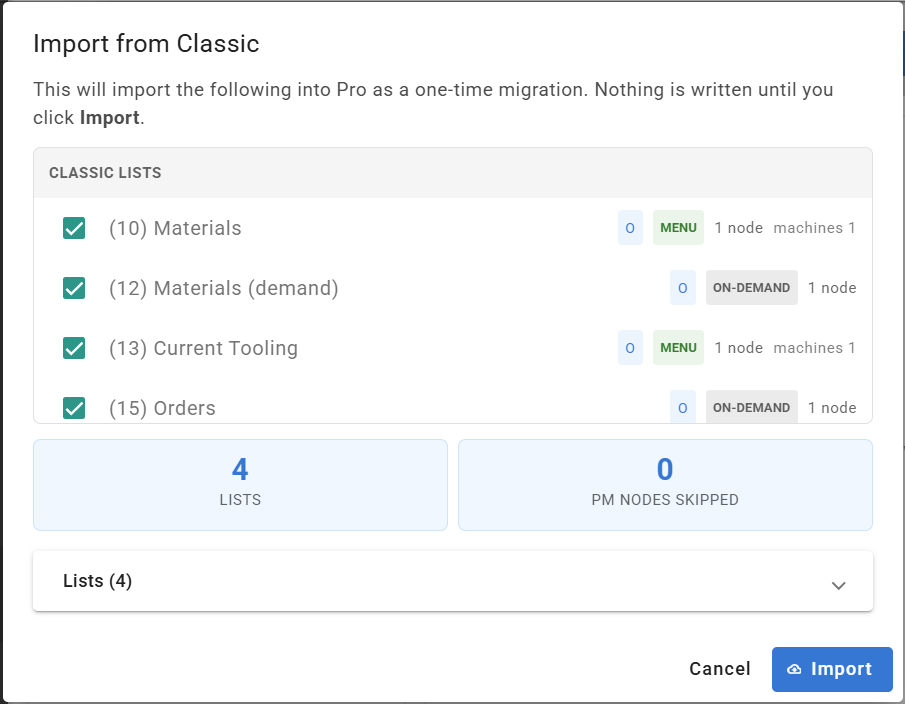
The one-time import lives behind the Import from Classic button and is a preview-then-commit flow:
- Preview — Pro reads every query list from Classic and shows each one with a checkbox. Trivial, empty seed lists are unchecked by default; you choose which of the rest to import. Any warnings are listed alongside the lists they affect — for example, a discontinued PM-type list reports that it will be skipped, and any stray nested rows in the data are dropped (they never worked on the controller).
- Commit — the selected lists are saved into Pro. If the Classic data changed at all between preview and commit, the commit is refused and you preview again.
After the commit, the Query Lists screen in Classic locks itself and shows the "managed in Eclipse Pro" message. Query lists are managed in Pro only from that point on.
Saving vs. deploying
Saving changes in the list editor never touches the controllers. Changes accumulate in Pro until you press Deploy in the page header:
- An Undeployed changes chip appears in the header whenever the saved configuration is newer than the last deploy.
- Deploy pushes all query lists to the factory floor, re-sending them to every affected machine's controller.
- Deploy validates everything first and reports errors and warnings per list or machine:
- Missing required fields on a list.
- A Next List chain pointing at something other than an Order list.
- A budget of 999 lists in total.
- Controller firmware below UART 3.15.
- Inactive or unlicensed machines are skipped with a warning — redeploy after reactivating or licensing the machine to pick it up.
FAQ
Do I have to import before I can use Query Lists? Only if the site has existing Classic query lists you want to keep using. A site that never used Query Lists, or is fine starting fresh, can build lists in Pro immediately.
Can I still edit lists in Eclipse Classic? No. After the import, the Classic screen refuses to open. This protects the Pro-managed lists — the old editor would corrupt them just by opening.
Why was my machine skipped on deploy? Either its controller firmware is older than UART 3.15, or the machine is inactive or unlicensed. Update the firmware, or reactivate/license the machine, then deploy again.
Why can't I set a Next List on my Setup/Label/Kit list? Only Order lists support status filters and Next List chains. Setup, Label, and Kit lists send their fields directly with no drill-down.
What can be a Next List target? Any other Order list — permanent (menu) or on-demand. Setup, Label, and Kit lists can't be targets because they have no drill-down behavior.
How big can my configuration get? Controller limits apply: list names are truncated at 40 characters, and there's a combined budget of 999 lists. Deploy checks both and tells you exactly what to trim if you're over.