Updating Eclipse
The Eclipse Pro Dashboard will notify users whenever software updates are available. Keeping Eclipse updated ensures access to the latest features, security improvements, performance enhancements, and compatibility between Eclipse workloads.
The Eclipse Pro Dashboard can be accessed using the URL below:
(Replace localhost with the name of the Eclipse Pro computer if connecting from another workstation.)
Updating Eclipse Classic will temporarily prevent users from sending or recalling orders until the update has completed. Production data remains stored at the controller and machine operation is not interrupted.
Updating Eclipse Pro workloads does not affect Eclipse-COMM communication or machine production and can be performed while production continues.
Checking for Available Updates
-
Log into Eclipse Pro and navigate to the Dashboard.
-
Look for the "Update Available" notification located in the lower section of the left navigation menu.
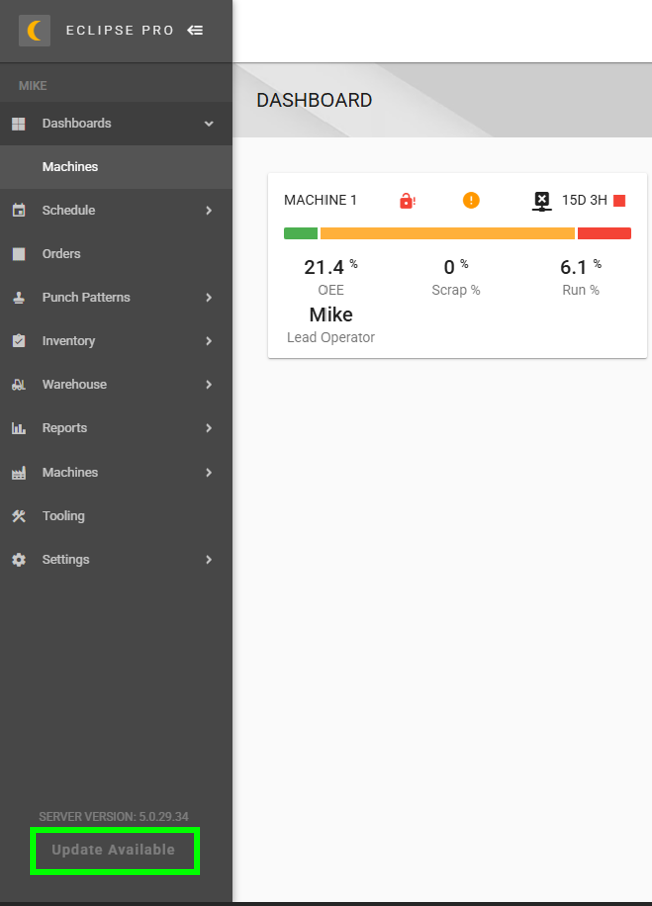
- This notification only appears when updates are available.
- If the notification is not present, your system is currently up to date.
- Select "Update Available" to open the Update Management page.
Review Available Updates
The Update Management page displays all software components that currently have updates available.
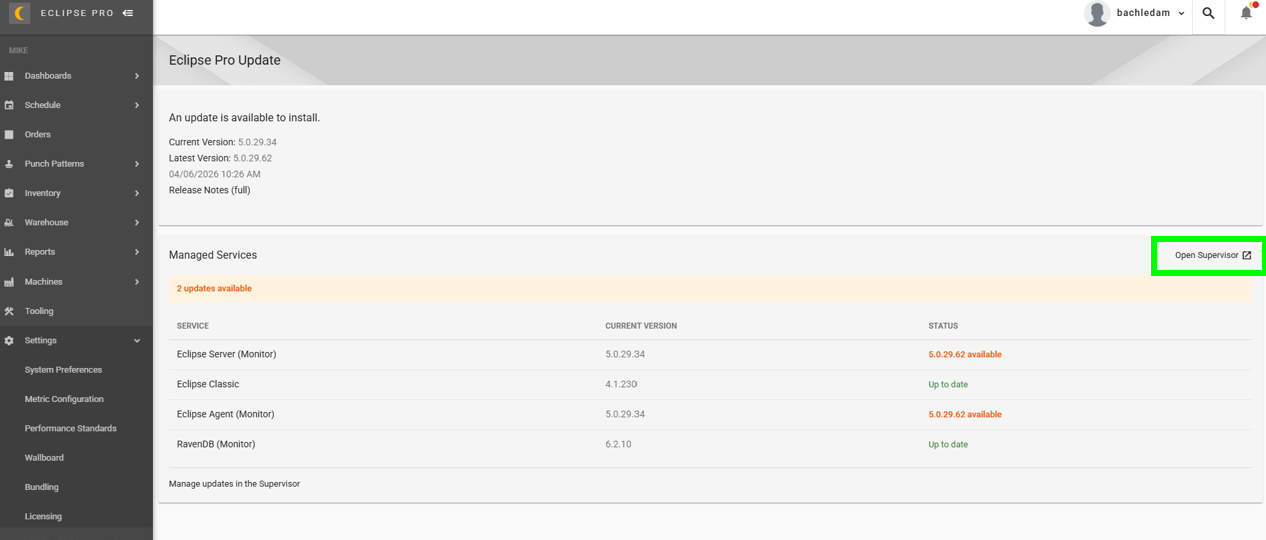
On this page you can review:
- Available workload updates
- Current software versions
- Versions available for installation
- Update status information
- Select "Open Supervisor" to continue.
Supervisor manages Eclipse workloads and is used to install and monitor updates.
Opening the Updates Tab
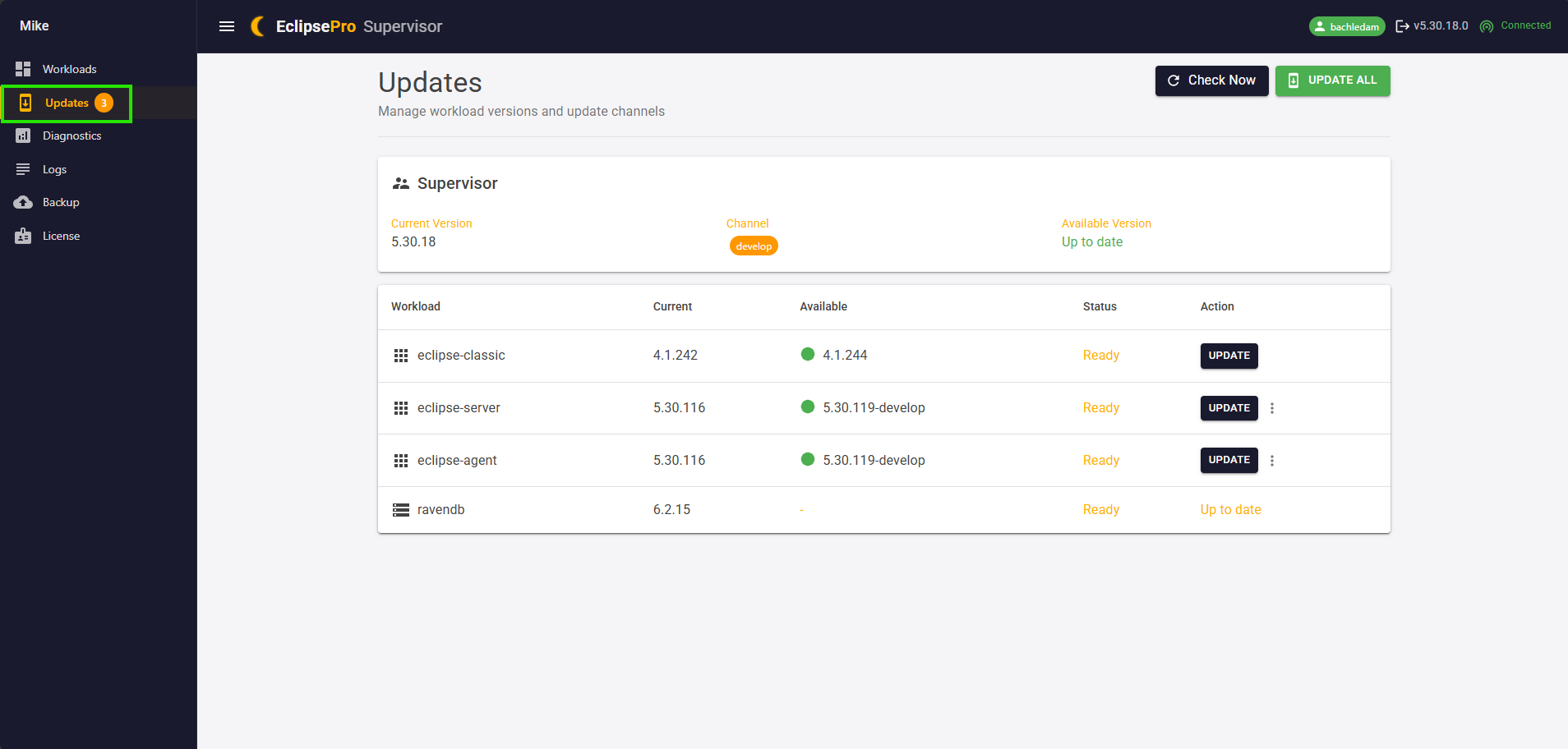
- Once Supervisor launches, select "Updates" from the navigation menu on the left side of the screen.
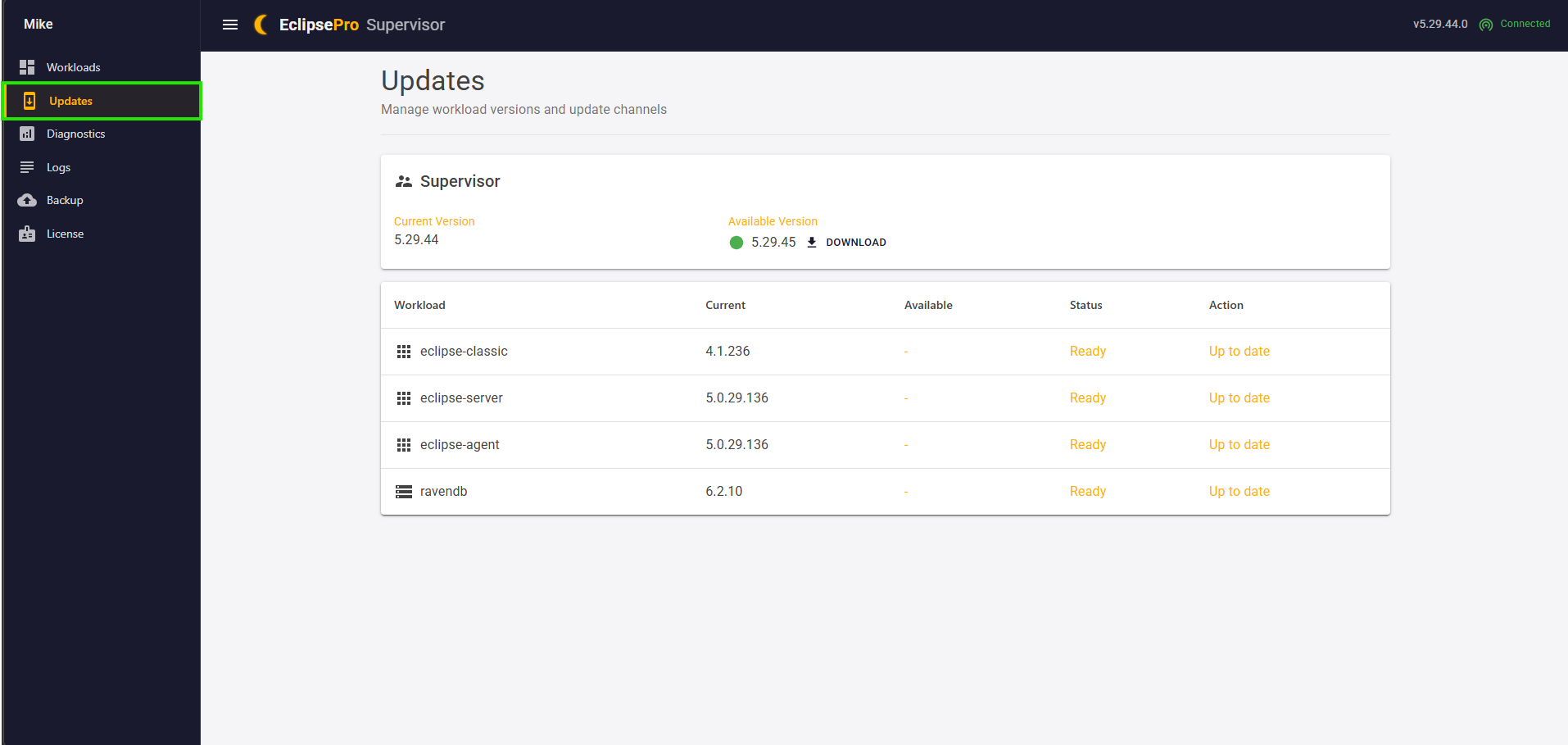
The Updates page displays:
- Available workload updates
- Current workload versions
- Installation progress
- Update status information
Ensuring Supervisor Is Updated
Updating Supervisor may refresh the update list and display the latest available workload versions.
- Verify whether a Supervisor update is available.
Workload updates may not appear until Supervisor is running the latest version.
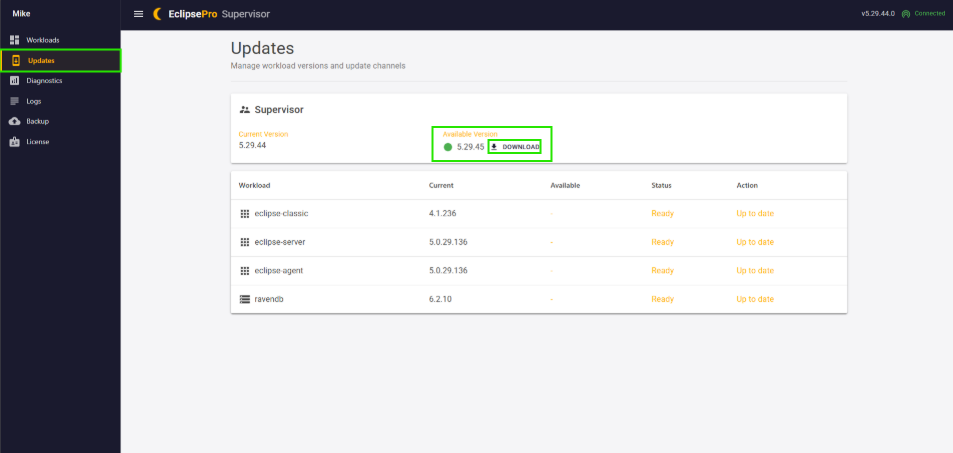
- If an update is available, select the Download button next to the available version.
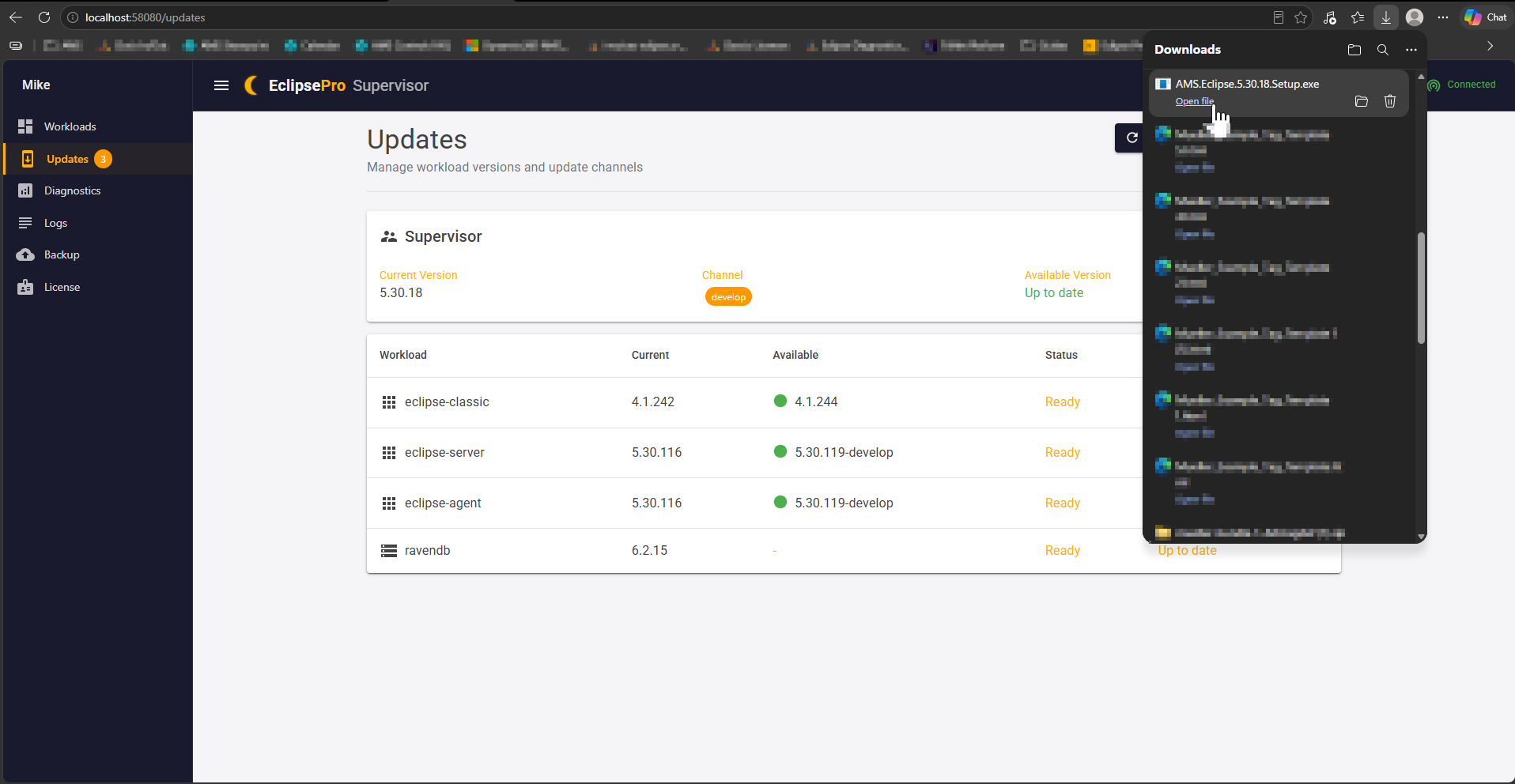
The download will appear in your browser downloads, typically located in the upper-right corner of the browser window. Once the download finishes, open the downloaded file.
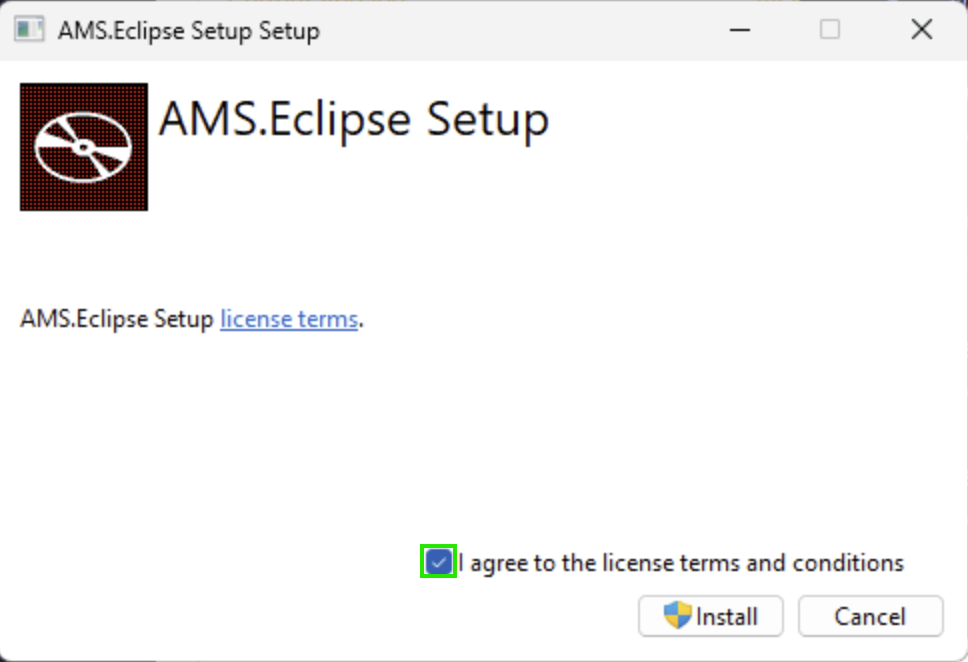
- When the AMS.Eclipse Setup window appears, review and accept the license agreement, then select Install.
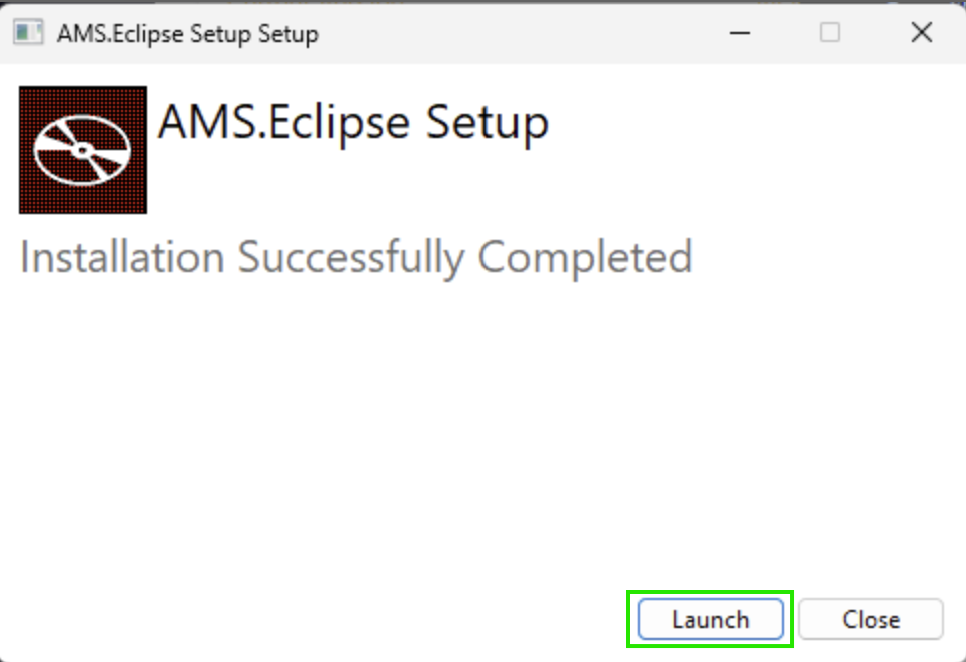
- After the installation completes, select Launch to reopen Supervisor.
- Return to the Updates tab and verify that the latest workload updates are now displayed.
Installing Updates
- Locate the "UPDATE ALL" button in the upper-right corner of the screen.
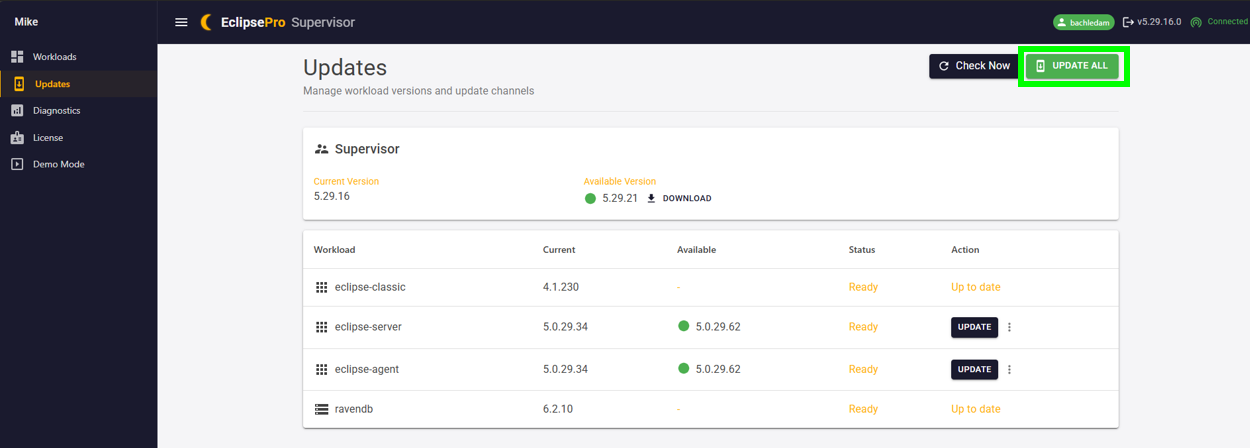
- Select "UPDATE ALL" to begin installing all available updates.
The UPDATE ALL option ensures all Eclipse workloads remain compatible with one another and is the recommended method for installing updates.

Monitoring Update Progress
- Remain on the Updates page to monitor update progress.
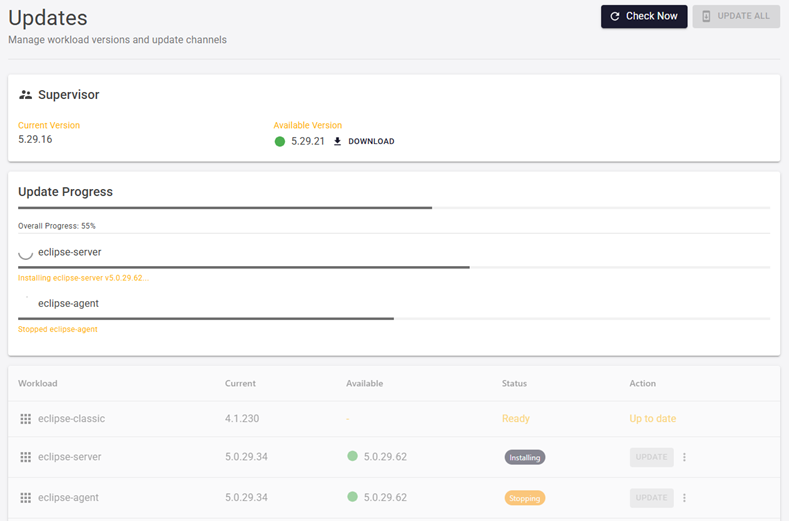
Common status indicators include:
- Pending – Update has been queued and is waiting to start.
- In Progress – Update is actively installing.
- Completed – Update installed successfully.
- Up To Date – Component is already running the latest version.
- Failed – Update did not complete successfully.
- Restart Required – A restart is required before the update can finish.
If a workload displays a Failed status, attempt the update again. If the failure persists, contact AMS Support for assistance.
Verify Update Completion
- When all updates have completed, verify each workload displays either "Completed" or "Up To Date."
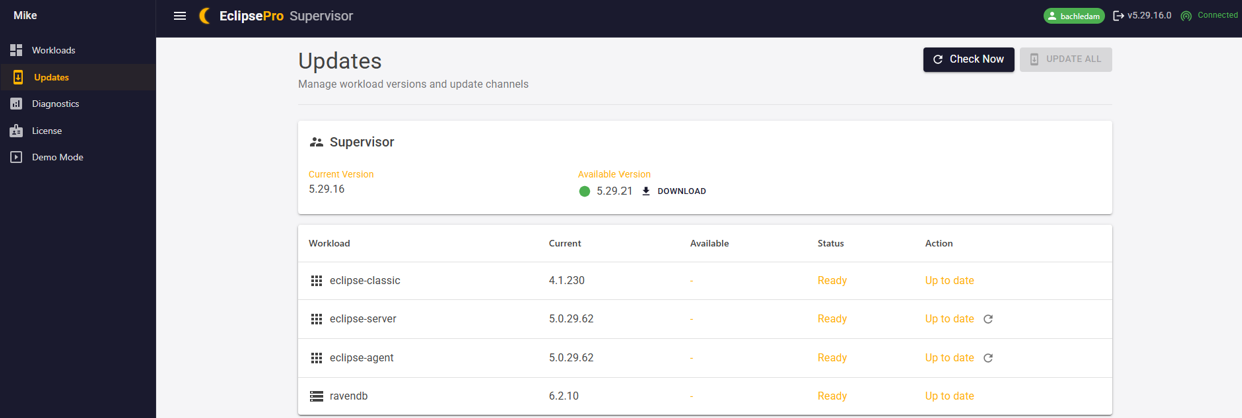
Successful completion indicates that all available Eclipse workloads have been updated.
The Update Available notification will no longer appear once all available updates have been successfully installed.
QA
The QA section is here to help with common issues encountered during updating. If any of the resolution steps below do not work, please contact AMS Support at (314) 344-3144 option #2 or via email at support@amscontrols.com.
The "Update Available" notification is not showing.
- Verify the Eclipse Pro server has internet access.
- Confirm all Eclipse services are running normally.
- Refresh the Eclipse Dashboard and check again.
A workload update failed.
- Retry the update from the Supervisor Updates page.
- Verify sufficient disk space is available on the Eclipse host computer.
- Review Supervisor logs for additional information.
- If the issue persists, contact AMS Support.
I cannot access Supervisor.
- Verify Supervisor is running.
- Navigate to the Supervisor URL:
- Confirm Windows Firewall is not blocking Supervisor access.
Updates appear to be stuck "In Progress."
- Allow additional time for larger updates to complete.
- Refresh the Updates page periodically.
- Verify the server has adequate system resources available.
- If progress does not change after an extended period, restart the affected workload and attempt the update again.
Do not power off or restart the Eclipse server while updates are actively installing unless instructed by AMS Support.